This article provides the steps to make changes to your profile within Exactix. This process eliminates the manual process of sending email back and forth and manually updating paper documents and faxing or scanning and emailing them to the Member Services Department.
You can request changes any time that you have changes in your organization and need to update to be completed.
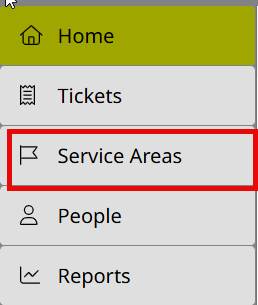
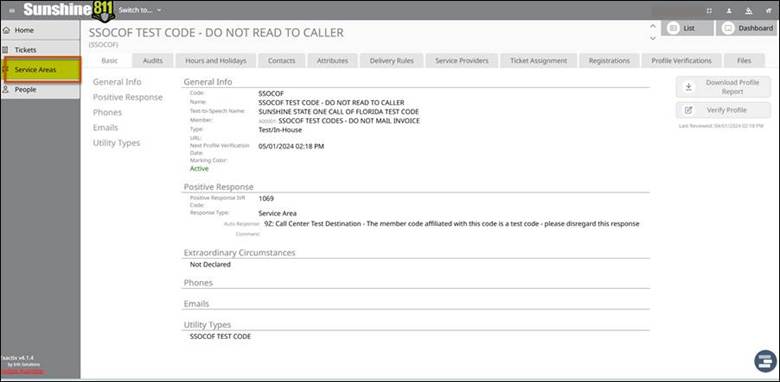
To complete this task login to Exactix and Select Service Areas
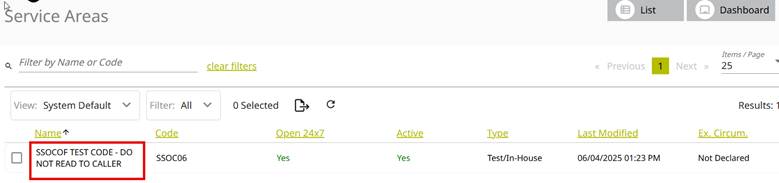
From the Service Areas List, Select the Service Area that you want to make changes for
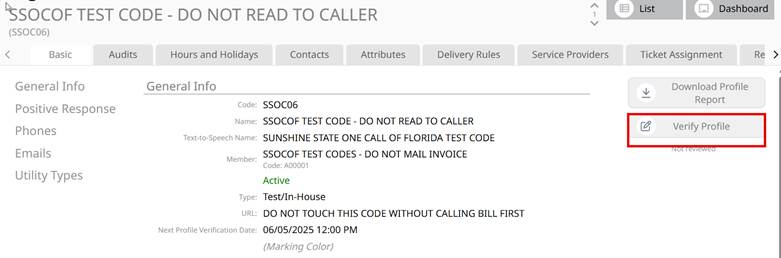
On the Right side of the screen, select the Verify Profile Button
There are multiple sections to go through. If at any time you need to come back later, choose save progress.
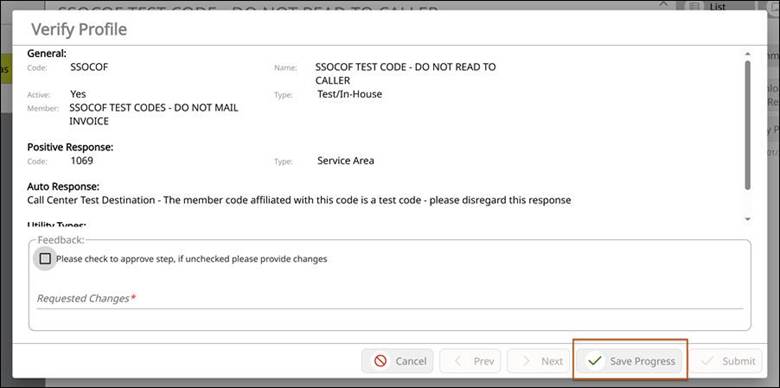
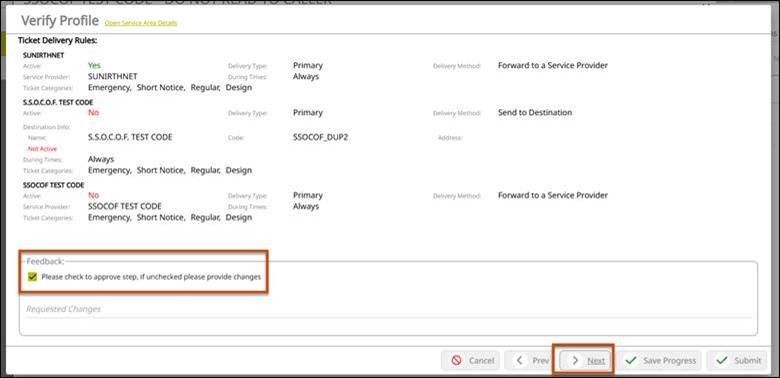
If no changes need to be made, click the box next to “Please check to approve step, if unchecked please provide changes”. Click Next.
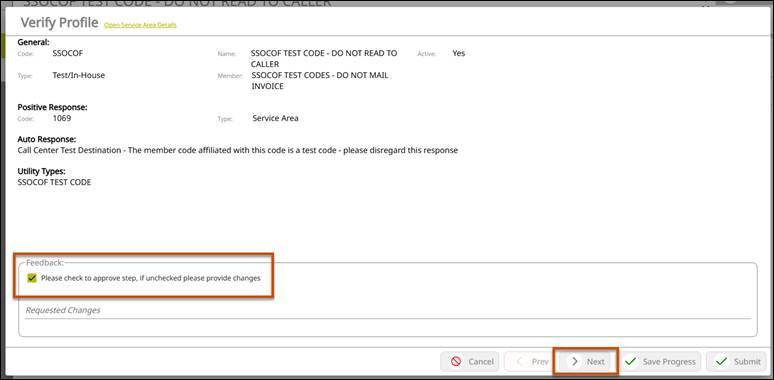
Do the same on steps 2-5 Check the boxes if there are no changes and click Next.
Step 2.
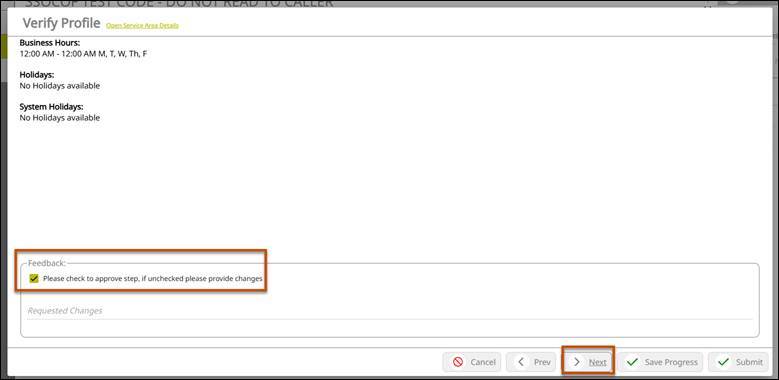
Step 3.
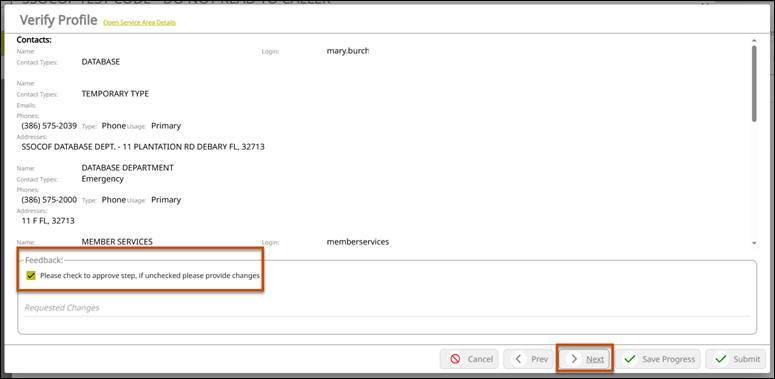
Step 4.
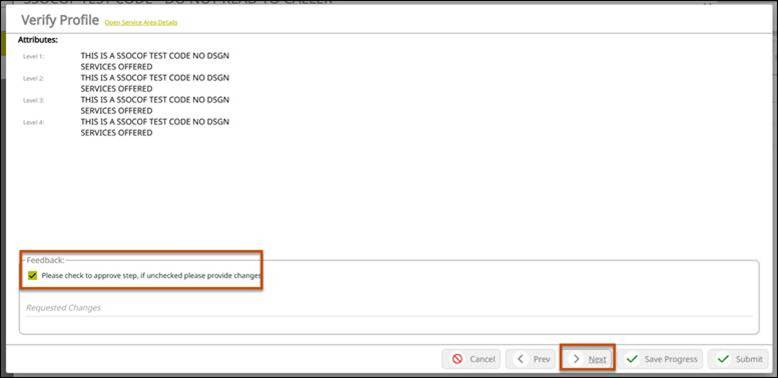
Step 5.
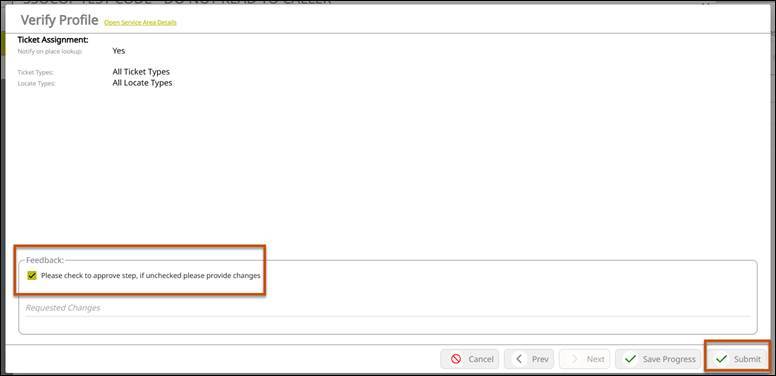
On the last step, click the box if there are no changes and click on Submit.
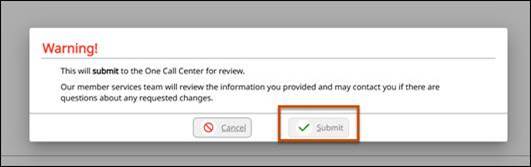
Click Submit.
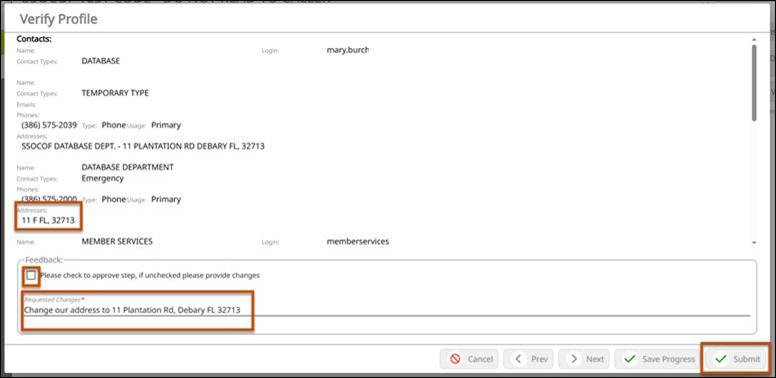
If a change needs to be made, keep the box unchecked and type in the requested change/changes. Click Next or Submit if finished.
Click Submit.
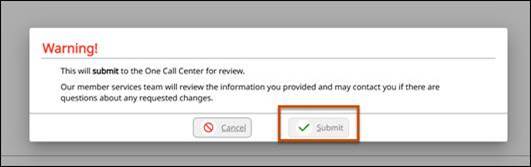
After submitting, you will be redirected to your account page.
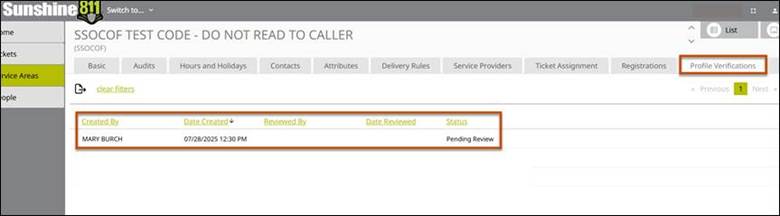
To review, click on Profile Verifications. Your name will display along with the status.
Was this article helpful?
That’s Great!
Thank you for your feedback
Sorry! We couldn't be helpful
Thank you for your feedback
Feedback sent
We appreciate your effort and will try to fix the article